Chart of Accounts
The Chart of Accounts is a list of accounts that you set up to organize and keep track of the money your church spends and receives. Church Windows Accounting provides your church with a Chart of Accounts structure that allows for Assets , Liabilities , Funds , Income , and Expense accounts to be separated into their own distinct categories.
Access Chart of Accounts

To access from the Button Bar, go to Chart of Accounts > View
Access Account Management

To access from the Button Bar, go to Chart of Accounts > Accounts

Once accounts are created within these categories, they can be grouped together by Subtotals and Custom Account Groups. They can also be placed in sequential order by account number. There is a Chart of Accounts Wizard to help you quickly get started with data entry.
Account Types
Fund Accounting is the system by which financial information and designated resources are tracked. The primary goal of this form of accounting is accountability rather than demonstrating profitability.
1 - Assets
An asset is something the organization owns and controls.
Examples: Bank Accounts, Investments, Cash
2 - Liabilities
A liability is something the organizes owes.
Examples: Payroll Deductions, Loans, Pass-Through Payments
3 - Funds
A fund is a designated accounting entity to fulfill a particular purpose and has it's own income and expenses. The Fund Balance represents the total value remaining in each fund.
Examples: General Operating Fund, Building Fund, Outreach Fund
4 - Income
Income accounts are sources of funding or monetary receipts.
Examples: Walk-A-Thon Donations, Rental Income, Investment Interest
5 - Expense
Expense accounts are costs to the organizations.
Examples: Office Supplies, Utilities, Payroll
As an option, the Liability Accounts category allows you to create a Accounts Payable / Vendors sub-ledger to keep track of money transacted between your church and its vendors / payees. If your church is currently subscribed to access and use the Accounts Receivable options in Church Windows, you can create an Accounts Receivable Clients sub-ledger in the Asset accounts.
Add and Remove Accounts
To add or remove an account in the Chart of Accounts:
- From The Initial Portal of Church Windows choose Accounting.
- Click Manage Accounts in the Button Bar at the top of the screen
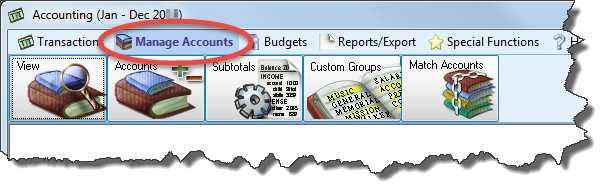
- Then click the Accounts +/— button from the options.
- Then, click the button that corresponds to the category of the account you wish to add or remove:

Add an Account
- Create an account by entering the Account Name and Account Number (if field is available).
- You can now also add that new account to an existing subtotal by using the Subtotals dropdown to the right of the account number field. This will automatically put the account under that subtotal when created so you do not have to add it later.
- Once done, click + Add Account to add the account to the Accounts list. The account will then be ready to be used in processing Transactions.
Delete an Account
- Place a checkmark in the box next to each desired account in the list.
- Then, click the - Delete Selected Accounts button located below the list.
- An account that cannot be deleted at the present time contains an N/A button, which displays a reason when clicked.
Sub-Accounts
Any account with a $0.00 balance and no transactions applied to the account can be converted into a ledger. You can then add accounts to it, called Sub-Accounts, to which you can then apply transactions.
Click the ellipses button under the Sub Accts column to add and/or remove Sub-Accounts. Then proceed to one of the following options:
Add a Sub-Account
- Enter the Account Name and Account Number (if field is available).
- Then, click + Add Account button to add the Sub-Account for the selected account.
- Repeat this for any other Sub-Accounts you wish to add.
Delete a Sub-Account
- Place a checkmark in the box next to each desired account in the list.
- Then, click the — Delete Selected Accounts button located below the list.
- An account that cannot be deleted at the present time contains an N/A button, which displays a reason when clicked.
When finished, click the button at the bottom of the screen to take you Back to Main Accounts. 
The number of Sub Accts will then change according to the number of Sub-Accounts the ledger (main account) now contains.
View Accounts
- Click Manage Accounts in the Button Bar
- Then click View. The screen that appears will display the Chart of Accounts for the currently set Accounting Year:
- Enter the Account Name or Account Number in the Search box. As you type, the box will show you the results that match the text you type.
- Click the Account Number and Account Name column headings to sort the list of accounts in order by the chosen column.
- Once you locate a desired account, click the Account Name or the Account Number once and type the change you wish to make:

- In the Display Options box in the bottom right, you can:
- Click the button to Collapse All and Expand All accounts in the list.
- Place a checkmark in the box to Show Active and/or Show Inactive accounts.
- If you want to use one of your Custom Account Groups use the Filter Accounts dropdown box to show only the accounts in that group.
- Review or make further changes to any selected account by clicking the Detail tab, or any of the other available tabs found on the right side of the screen.
Detail
Use the Detail tab fields to view or make further adjustments to the following options which vary depending on the type of account.
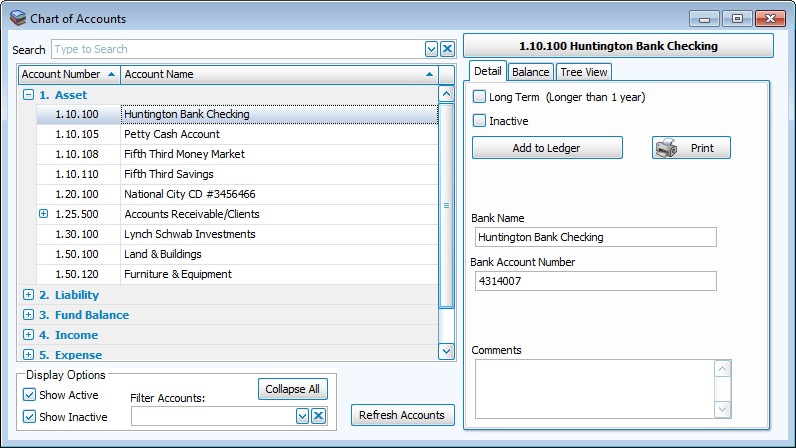
- Long Term:
Identifies the selected asset or liability account as one that lasts for a period of time longer than a year. - Inactive:
Prevents the account from appearing on transaction entry screens. - Add to Ledger:
Selects a desired Main Ledger for the account. - Print:
Accesses additional options to print, export, and/or email a General Ledger report. - Bank Name:
Stores the name of the financial institution entered. - Bank Account Number:
Stores the account number at the financial institution entered. - Asset:
Links the Fund Balance account to the selected Asset account. - Fund:
Links the account to a Fund in the Chart of Accounts. - Comments:
Records any further information you would like to store.
Balance
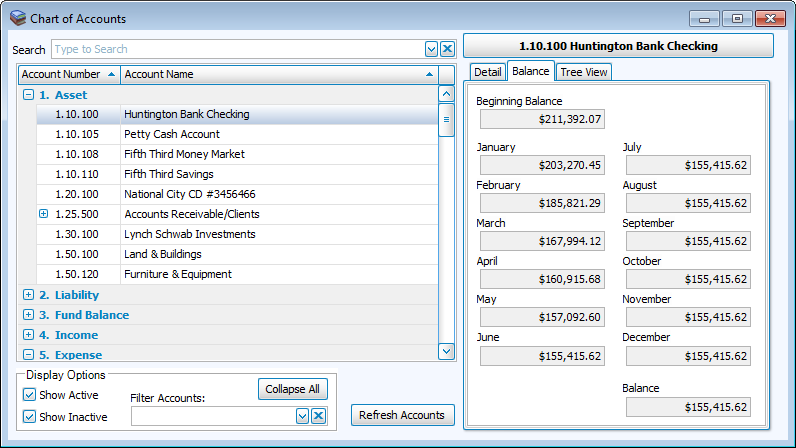
Use the Balance tab to view the balances for the selected account. Balances will show for the beginning of the year, for each month, and Running Balances (or an ending balance) for the currently set Accounting Year.
Tree View
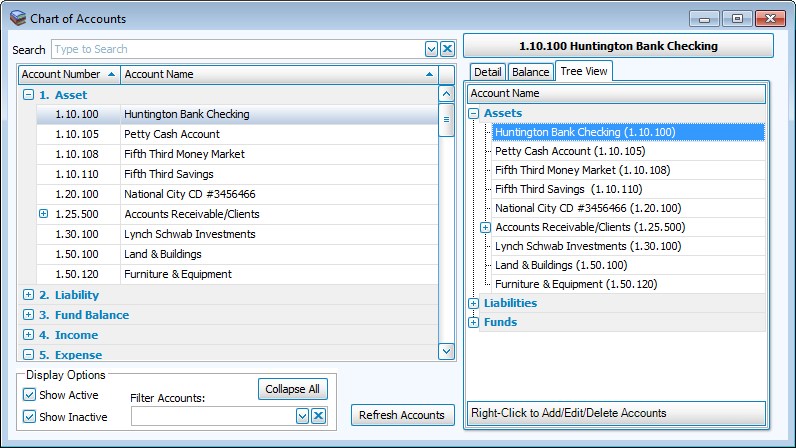
Use the Tree View tab to alternatively navigate your way through the Chart of Accounts. Right-click an account to see its available options for you to Add a Sub-Account , change, edit, and/or Delete an Account .
Vendor / Payee
View and edit any additional information about your Accounts Payable Vendors / Payees by using the fields on the Vendor / Payee tab: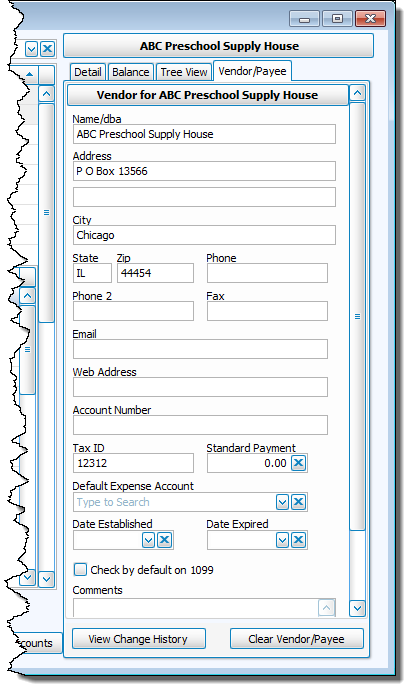
All fields are optional, except for the Name / DBA field. Any modifications that you make to the Vendors / Payees will be saved as you go.
- Change the Name / DBA only if you would like to use a name different than the account name in the Chart of Accounts. The Name / DBA entered will be noted on Payee (or Client) fields on various Accounting screens, and on the Payee field of a check printed from the Accounting module.
- Enter the Address, City, State, Zip, Phone, Phone 2, Fax, Email, and Web Address information in the fields provided.
- Enter the associated Account Number and/or Tax-ID.
- Enter a Standard Payment if the dollar amount transacted between your church and your vendor / payee (or client) is most often the same amount. The amount entered here for the selected vendor / payee will automatically appear in the Amount To Pay box found on the Pay Bills screen.
- The Default Expense Account you choose will automatically appear in the Expense / Income Accounts box found on the Enter Bills screen when entering an invoice for the selected Vendor / Payee .
- Keep track of the time frame that the account will be used by entering dates in the Date Established and Date Expired fields.
- On the Vendor tab only, choose the Default 1099 Form that applies. By choosing a form from this box, the software will automatically place a checkmark in the Print box on the screen you use to print your Form 1099-MISC, 1099-NEC. Any account not selected from this box will still be available for you to select manually in order for it to print on your Form 1099.
- Enter Comments to identify any further details you would like to include.
Click the View Change History button to see a log of the changes made to the information on this tab.
If you click Clear Vendor / Payee, all the information from the above fields will disappear.
Client
For Accounts Receivable clients this is called the Client tab. To display the tab and make any desired changes to the Client's information, click the account from the list of accounts on the left side of the screen. Click the tab itself to proceed: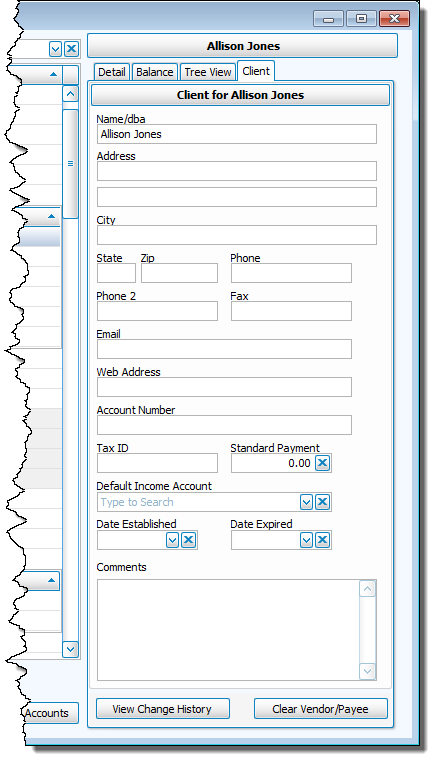
All fields are optional, except for the Name / DBA field.
- Change the Name / DBA only if you would like to use a name different than the account name in the Chart of Accounts. The Name / DBA entered will be noted on Payee (or Client) fields on various Accounting screens, and on the Payee field of a check printed from the Accounting module.
- Enter the Address, City, State, Zip, Phone, Phone 2, Fax, Email, and Web Address information in the fields provided.
- Enter the associated Account Number and/or Tax-ID.
- Enter a Standard Payment if the dollar amount transacted between your church and your vendor / payee (or client) is most often the same amount. The amount entered here for the selected Accounts Receivable client will automatically appear in the Collected Amt box found on the Collect Accounts Receivable screen.
- The Default Income Account you choose will automatically appear in the Income / Expense Accounts box found on the Invoice Accounts Receivable screen when entering an invoice for the selected Client.
- Keep track of the time frame that the account will be used by entering dates in the Date Established and Date Expired fields.
- Enter Comments to identify any further details you would like to include.
Click the View Change History button to see a log of the changes made to the information on this tab.
If you click Clear Vendor / Payee, all the information from the above fields will disappear.